- Use google-sites. go here, and follow steps 1.1 and 1.2. In step 1.2 try use your name as web address. It is sometimes important to catch the name you want. Sometimes companies quarrel because they want to get the same web address, but it belongs to whoever gets it first. When you are done, you have a web-site, albeit an empty one. So try some tweaks from step 1.3 - insert an image, you favorite youtube video, different colors etc.
- I recommend using google chrome for managing the site. If you don't have a shortcut to google sites add it to google apps. you can go to chrome://apps/ page and from the right bottom corner go to web store. look for google sites and add it to chrome.
Wednesday, 23 August 2017
Design a website
Try make a website. This can help you in more than one way. It can in the future get you jobs, or if you don't earn money by designing web pages, you can at least do your own work so you don't have to pay others.

Saturday, 24 June 2017
minimize from lounch-bar icon
When you want to minimize a window by clicking on its icon, I found a command here
copy and paste in terminal:
gsettings set org.compiz.unityshell:/org/compiz/profiles/unity/plugins/unityshell/ launcher-minimize-window true
copy and paste in terminal:
gsettings set org.compiz.unityshell:/org/compiz/profiles/unity/plugins/unityshell/ launcher-minimize-window true
Tuesday, 6 June 2017
Sunday, 4 June 2017
Seek and you will find it
The world is wide and new to you. There are so many things to know. You don't have to know everything. You just have to know this: You are probably not the first one asking your question, or struggling with your problem. So google your question / your problem, and see what answers / solutions come up. Examples:
I want to make myself look thinner / fatter in a picture so I could sell biscuits better. Pinta won't do it for me. Perhaps photoshop, but that is not for Linux. GIMP is an alternative to Photoshop, but can I use it to mess with pictures and make people thin / fat? I asked google. Well, someone thought of it before (those who invented gimp first, but then someone explained how to do it). So I followed these steps and got this:
 You want to use gimp but don't have it?
Google something like "install gimp ubuntu"
Then follow instructions.
Let's try something else.
Ahh, I have to think of something
I want to make myself look thinner / fatter in a picture so I could sell biscuits better. Pinta won't do it for me. Perhaps photoshop, but that is not for Linux. GIMP is an alternative to Photoshop, but can I use it to mess with pictures and make people thin / fat? I asked google. Well, someone thought of it before (those who invented gimp first, but then someone explained how to do it). So I followed these steps and got this:

Google something like "install gimp ubuntu"
Then follow instructions.
Let's try something else.
Ahh, I have to think of something
Saturday, 3 June 2017
install Logo to play with a simple programming tool
You can install some tools like Pinta by using "Ububntu Software", but the coolest and sometimes the only way to install software is by using the terminal, and the command "apt-get install". So first, open a terminal. You can do it by using the shortcut Ctrl+Alt+T, or press the "Super" key (windows), then write terminal, and click on it. Then write in the terminal:


sudo apt-get install ucblogo
Wait a moment! the lazy way is the best way, no need to type. Copy the above command and paste it in the terminal. You cannot use Ctrl+V to paste in the terminal. So if you don't want to type, paste it by right-click > paste, or by Ctrl+Shift+V in the terminal.
Wait a moment! the lazy way is the best way, no need to type. Copy the above command and paste it in the terminal. You cannot use Ctrl+V to paste in the terminal. So if you don't want to type, paste it by right-click > paste, or by Ctrl+Shift+V in the terminal.

After you click enter, you will have to give your login password, then maybe click "y" (yes) when asked. After that, write logo in the terminal, and then you can start programming.
The goal is to draw something. The most basic commands are forward, backward, right and left. They have shortcuts however: fd, bk, rt and lt. To draw a square you have to go forward and turn 90deg right, four times. you can do it in one command:
fd 100 rt 90 fd 100 rt 90 fd 100 rt 90 fd 100
Clear the screen with cs before drawing something new.
You can also make a square using repeat. Look at the example below and figure out how it works:
repeat 4 [fd 100 rt 90]
Didn't clear screen? clear it and try again.
Didn't clear screen? clear it and try again.
Make a circle?
cs repeat 120 [fd 3 rt 3]
A spiral perhaps:
make "dis 2 repeat 50 [rt 30 make "dis :dis+2 fd :dis]
Here we used make to create a variable called "dis", short for distance. we want the distance forward to increase every time we turn. So we start with distance two like this:
make "dis 2
When we assign a value (2 in this example) to a variable (dis) we put double quote before ("dis). When we use the variable dis to go forward we add a colon before (fd :dis). So what do we have inside the square brackets? we turn 30deg, we make new distance to be the previous one plus 2, then we go forward this distance. Clear? No? ask mom. Come on, look up in the square brackets and try translating English to logo. You now what? here it is in color.
English: Initial distance is 2. Repeat 50 times - turn right 30 degrees, new distance equals current distance plus 2, go forward this distance.
Logo: make "dis 2 repeat 50 [rt 30 make "dis :dis+2 fd :dis]
A growing spiral:
make "dis 2 repeat 85 [rt 30 make "dis :dis*1.05 fd :dis]
Here we increase the distance each time by 5% (1.05 equals to 105%) so it keeps growing.
A spiral perhaps:
make "dis 2 repeat 50 [rt 30 make "dis :dis+2 fd :dis]
Here we used make to create a variable called "dis", short for distance. we want the distance forward to increase every time we turn. So we start with distance two like this:
make "dis 2
When we assign a value (2 in this example) to a variable (dis) we put double quote before ("dis). When we use the variable dis to go forward we add a colon before (fd :dis). So what do we have inside the square brackets? we turn 30deg, we make new distance to be the previous one plus 2, then we go forward this distance. Clear? No? ask mom. Come on, look up in the square brackets and try translating English to logo. You now what? here it is in color.
English: Initial distance is 2. Repeat 50 times - turn right 30 degrees, new distance equals current distance plus 2, go forward this distance.
Logo: make "dis 2 repeat 50 [rt 30 make "dis :dis+2 fd :dis]
A growing spiral:
make "dis 2 repeat 85 [rt 30 make "dis :dis*1.05 fd :dis]
Here we increase the distance each time by 5% (1.05 equals to 105%) so it keeps growing.

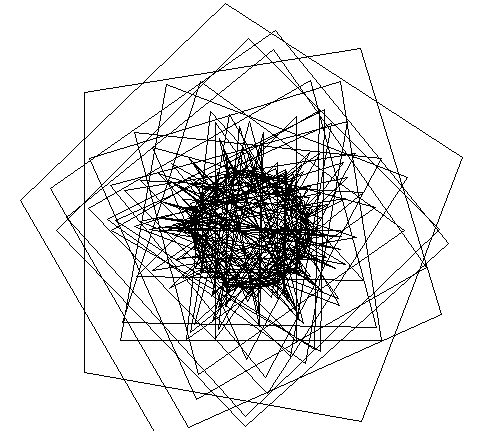
I suggest following the steps described in this website to get to know logo. Try making some simple shapes in different colors. say, a red square near a green triangle. Can you do it?
Photos, install tools and edit them
Now we will learn a bit about photos. First we need to download one, or to take one with the webcam of the laptop.

 Okay, so now we have some photos we want to edit. We may want to write something on top, add thick eyebrows etc. For this we need a program. Let's install something called Pinta by using "Ubuntu Software" . You can click on the orange bag symbol. If you can't see it on the left side Launcher (where all the icons are), press the "Super" key and write "ubuntu software". Click on the orange bag.
Now a window opens where you have to search for the program you want. Write "pinta", and once it is found, click install. It will say "installing" for some seconds, then it is ready to work.

 Finished installing? great. Now let's open the picture. Open your file explorer "Nautilus", just the grey icon in the Launcher. Then navigate to Pictures or to further into Webcam if your picture is there. Right-click on the image and choose open with > Pinta. Got it?

- Download a photo: google someone you like, like Koko the gorilla, right-click on the image, choose "save image as...".
- Save it in Pictures directory: when saving, click on Pictures directory on the left, then save.

- If you work on a laptop you should be able to use you webcam to take a snapshot of yourself.
Let's open "Cheese webcam booth". For this we click on "Super" button (it looks like windows symbol on most keyboards, see an example here), and write webcam. Click on the cheesy icon.


- When you click on it, a window opens and you see yourself moving about with a puzzled look. make sure the "photo" button is pressed, then click on the video symbol to take a picture. The picture is automatically saved in "Webcam" folder inside "Pictures".
Okay, so now we have some photos we want to edit. We may want to write something on top, add thick eyebrows etc. For this we need a program. Let's install something called Pinta by using "Ubuntu Software" . You can click on the orange bag symbol. If you can't see it on the left side Launcher (where all the icons are), press the "Super" key and write "ubuntu software". Click on the orange bag.Now a window opens where you have to search for the program you want. Write "pinta", and once it is found, click install. It will say "installing" for some seconds, then it is ready to work.
 Finished installing? great. Now let's open the picture. Open your file explorer "Nautilus", just the grey icon in the Launcher. Then navigate to Pictures or to further into Webcam if your picture is there. Right-click on the image and choose open with > Pinta. Got it?
Now you should see your picture with tools on the left side. Try drawing on the picture with the mouse. Change color by clicking on the little colorful squares on the left, draw some more.
Now, there is a selection tool that looks like a dashed square on the top left corner of the tools area. Click on it, choose an area of the picture by click and dragging the mouse. Then delete this rectangle by pressing the delete button of the keyboard. Now choose the paint bucket tool and spill some paint into the hole.
Now just play with it. Try inserting text by clicking the text (T) tool, choosing area of the picture with lasso or magic wand, use Ctrl+C to copy what you selected and Ctrl+V to paste it somewhere. In the end, you should use "save as" if you want to save your creation without overwriting the original image. For this, you have to find "file" tab. It may show itself when you hover the mouse over the top left of the screen or over the top left of Pinta window. Click on file, choose "save as", give your file a new name and save it.
Important tips - use Ctrl+Z to undo something you did. use Ctrl+A to choose all the picture. You sometimes have to do this after you work on an area, otherwise you can't draw outside your selection.

So it all started a while ago when I promised my girls that if they finished 100 levels in CodeMonkey I get them a 300$ laptop each. They did it (with my help) and now they use their laptops daily. However, in 300$ I got no OS, so I installed Ubuntu (16.04). They use LibreOffice instead of Microsoft office to prepare homework, and they use firefox / google-chrome to get to their email, youtube. So they never open terminal, they do not install new software or do anything else with their computer. A shame. So here I am building some exercises for them to learn more about Ubuntu, and linux in general.
Subscribe to:
Comments (Atom)
-
 You can install some tools like Pinta by using "Ububntu Software", but the coolest and sometimes the only way to install software...
 -
 Now we will learn a bit about photos. First we need to download one, or to take one with the webcam of the laptop. Download a photo: ...
 -
Try make a website. This can help you in more than one way. It can in the future get you jobs, or if you don't earn money by designing w...